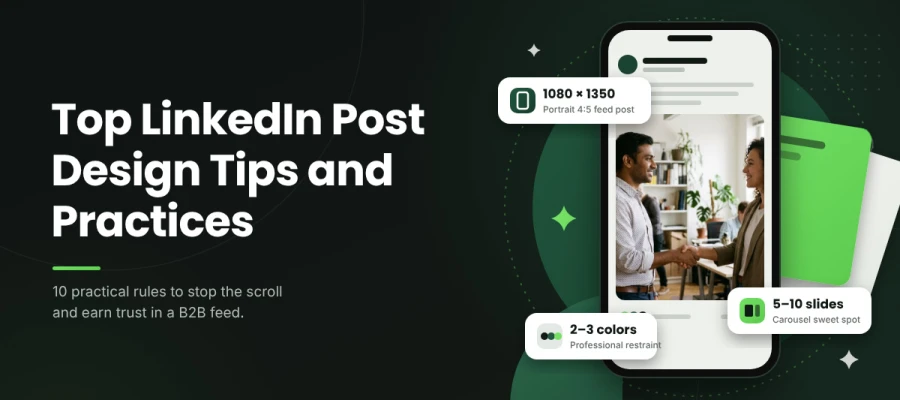
How do you use LinkedIn post design tips to stop your B2B posts from being scrolled past? Make your portrait graphics 1080 by 1350 pixels and keep the look calm with just two or three colors. Build carousels with 5 to 10 slides, and place all your text inside the 880 by 1150 safe zone. Choose real photos over stock-style images, and back up every claim with clear data your readers can trust.
Say you wrote something worth reading. It took days, you checked the numbers twice, and you said what your competitors wouldn't. You posted it and got eleven views. People just scrolled past, because the graphic gave them no reason to stop.
Teams usually go wrong in one of two directions. Some treat LinkedIn so formally that their graphics come out gray and easy to forget. Others borrow the loud style of consumer social media, and the post ends up looking like an ad that wandered into a business meeting.
LinkedIn users skim posts as they do on any platform, but bright, crowded designs that feel playful elsewhere can look unprofessional in a B2B feed. The social media graphic principles still hold, including clear hierarchy, strong contrast, and a sensible type scale. You just apply them with a calmer palette and more white space.
Today, we’ll share ten design tips for LinkedIn posts that fit the B2B feed, so the ideas you worked hard on actually get noticed.
Let’s get started with tips one by one!
10 LinkedIn post design tips
Effective LinkedIn post design earns attention in the first second by looking clear, credible, and made for a professional feed. Unlike consumer platforms, LinkedIn rewards designs that signal expertise over flair, so format, tone, and proof all need to work together before anyone reads the caption. When they do, your message gets its best chance of being read, saved, and shared.
The 10 LinkedIn post design tips below are meant to help you design B2B posts that stop the scroll and build trust with the people you want to reach.
Tip 1: Use portrait 4:5 for feed posts, not landscape
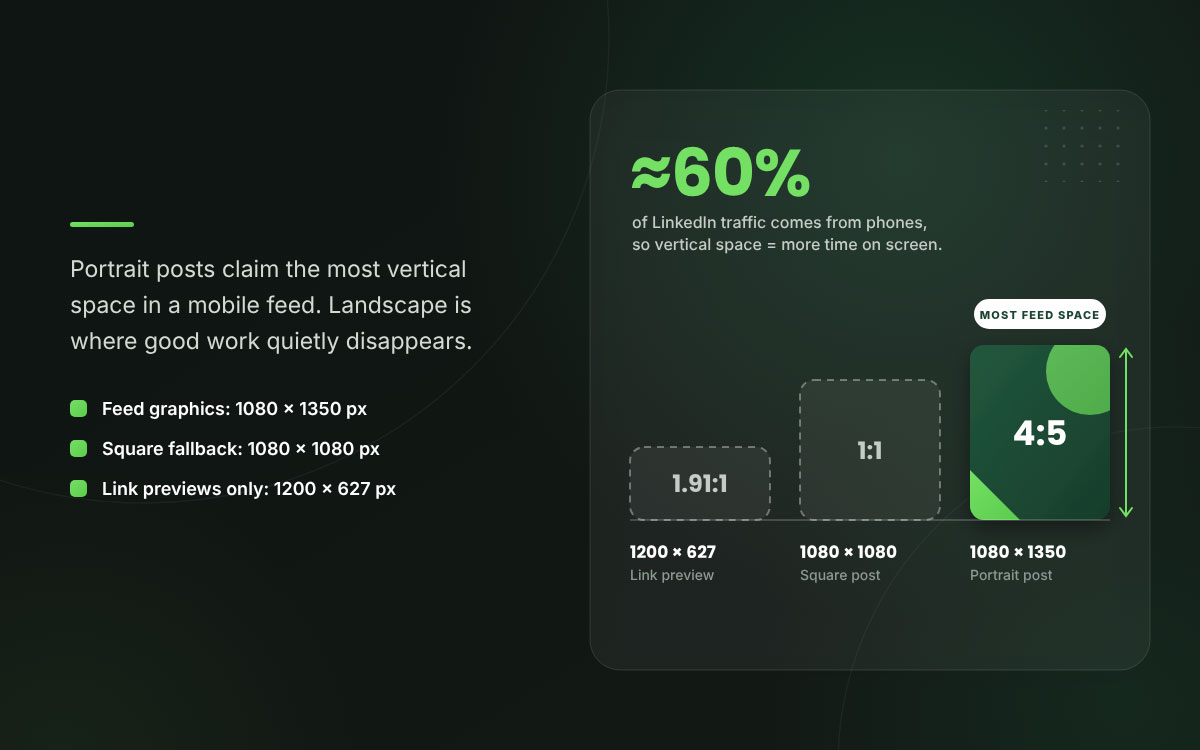
LinkedIn works with several feed image sizes. Popular picks include 1200 × 627 px for a 1.91:1 link preview, 1080 × 1080 px for a square post, and 1080 × 1350 px for a 4:5 portrait post. The portrait takes up the most vertical space in the feed.
Why it matters: Around 60 percent of LinkedIn traffic comes from phones, and on a phone, extra vertical space means more time in a viewer's field of view. Most high-performing creators lean on portrait for this reason. Landscape stays the default most teams never think to question, and that is where good work quietly disappears.
How to apply it: Design your feed graphics at 1080x1350. Save 1200x627 landscape for link-preview posts, where the text carries the message.
Tip 2: Do not pair a strong image with a long caption
When a post has both a compelling hero image and a 2,000-character caption, readers have to pick where to look, and engagement drops.
Why it matters: This applies mostly to LinkedIn, where long-form text really does well. Two strong things don't stack up here. They split the reader's attention. A text post works best with no image at all. An image post works best with about three lines of caption and the self-control to stop there.
How to apply it: Choose one carrier for each post. Go with a strong visual and two or three lines of text, or write a long text post and leave the image out completely.
Tip 3: Build carousels as documents, 5 to 10 slides
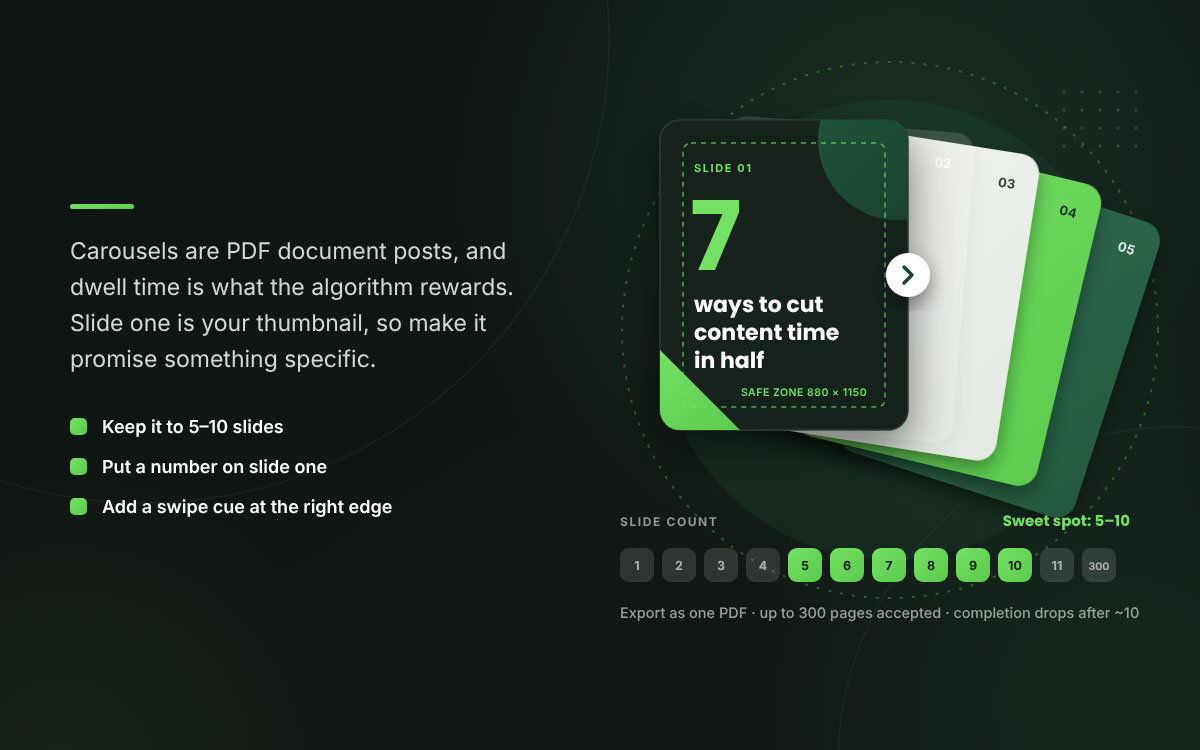
LinkedIn carousels are document posts, so you export a PDF and upload it. Up to 300 pages are technically accepted. The engagement sweet spot sits at 5 to 10 slides.
Why it matters: Carousels build dwell time, and dwell time is exactly what the algorithm rewards. Once you pass roughly ten slides, completion rates drop, and the advantage flips against you. A repeatable template system helps here. It keeps every slide consistent, so you never redesign from scratch each week. Our guide to social media post ideas returns to this habit again and again.
How to apply it: Design each slide at 1080x1080 or 1080x1350, export as a PDF, and keep the count between 5 and 10 slides. For portrait slides, park your text inside the center 880x1150 safe zone.
Tip 4: Design for professional restraint, not consumer energy
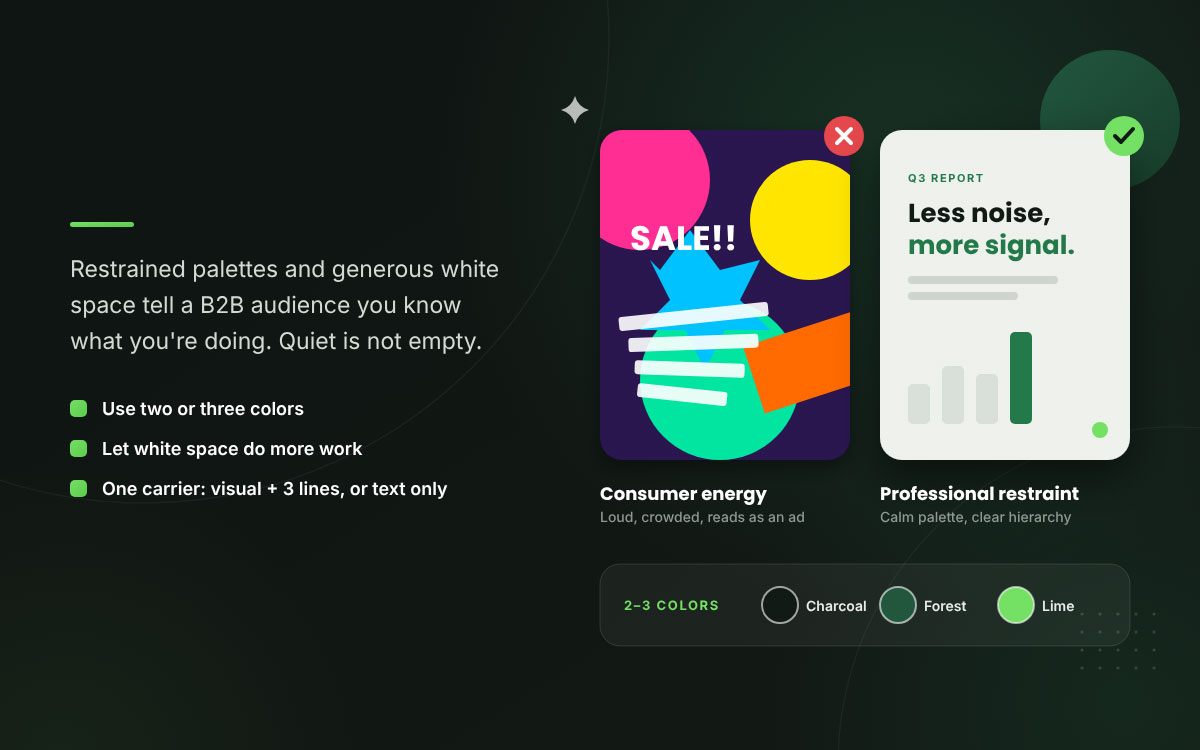
LinkedIn audiences read visual conventions differently from Instagram audiences. A design that thrives on consumer platforms can look unserious in a B2B feed.
Why it matters: This is a real difference in convention, and taste has little to do with it. Restrained palettes, generous white space, and a clear typographic hierarchy tell a professional audience that you know what you're doing. Disciplined color theory keeps that restraint from turning dull, since quiet and empty are two very different things.
How to apply it: Use two or three colors and put legibility ahead of decoration. Then give white space more work to do than you would anywhere else.
Tip 5: Make the first slide earn the swipe
Your first carousel slide acts as the thumbnail in the feed. If it fails to show value, no one ever sees what comes after it.
Why it matters: Slide one has the same job as a thumbnail. It earns the click that opens up everything you worked on. A cover slide with only a title wastes the most valuable spot in the whole document.
How to apply it: Put a specific promise on slide one, and a number helps a lot. Then add a subtle visual cue at the right edge, so the eye knows more is waiting.
Tip 6: Put the keyword early in both caption and graphic
LinkedIn cuts captions off at around 140 characters on mobile, and it increasingly relies on keyword matching to surface content, not just hashtags.
Why it matters: That little visible snippet has to persuade readers and help people find you, all at once. Whatever comes after the cut gets less weight on both counts. Building slowly toward your point works nicely in an essay, but it costs you here.
How to apply it: Put the specific terms a professional would really search for right up front. Stick with three to five relevant hashtags rather than the big piles that suit Instagram.
Tip 7: Include data visualization where you have real data
B2B audiences respond to evidence, and a clean chart is the fastest way to deliver it. Thoughtful infographic design boosts comprehension substantially in B2B content.
Why it matters: A well-made chart shows that your claim has real backing, which no adjective can do. Data graphics also travel well. They rank among the most-shared and most-linked B2B formats around.
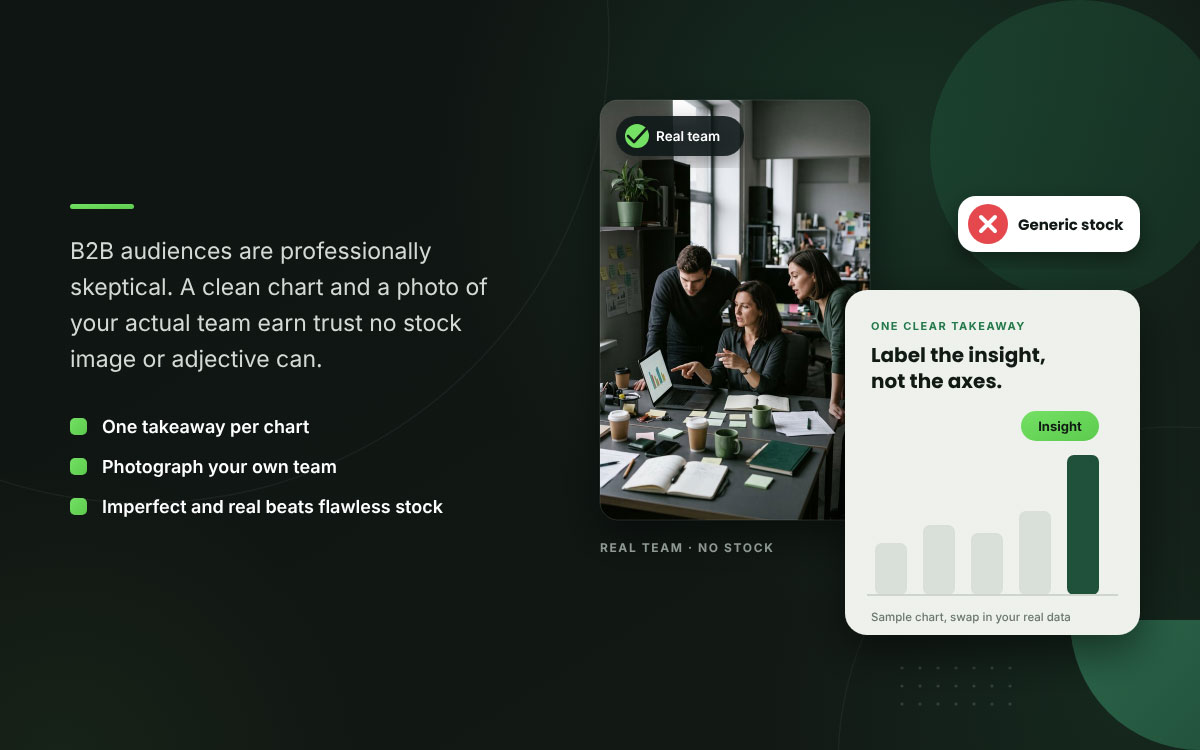
How to apply it: Build each chart around one clear takeaway instead of dumping raw figures on the page. Label the insight itself, and give the axes a supporting role.
Tip 8: Use real photography of real people
Stock photos get spotted on LinkedIn almost instantly. The audience here is professionally skeptical, and people see the same images repeatedly.
Why it matters: Credibility is the biggest hurdle to winning B2B customers, and few things chip away at it faster than four strangers laughing around a laptop that nobody is using. Real photos of your actual team, your live events, and your true working environment beat polish every time, since a competitor can't download them.
How to apply it: Photograph your own people and your own workspace. On this platform, even a slightly imperfect real photo wins over a flawless stock image.
Tip 9: Design video for sound off and under two minutes
Regular LinkedIn videos can run up to 15 minutes when uploaded from desktop and up to 10 minutes from the mobile app. Shorter videos can be a useful starting point, but the best length depends on the topic and audience. Most viewing happens with the sound off.
Why it matters: Your audience is watching between meetings, on a train, or in an open-plan office where turning up the volume would earn you some very stern looks. Video that leans on voiceover reaches only a fraction of the people it was made for.
How to apply it: Design at 1920x1080 or 1080x1080 and keep it under two minutes. Write your own captions instead of trusting the auto-generated ones, since those tend to get creative with your words.
Tip 10: Get the company page banner right
LinkedIn recommends a 4200 × 700 px cover image for Company Pages and a 1584 × 396 px cover image for personal profiles. Both are extremely wide, yet they are often designed as if they were ordinary rectangles.
Why it matters: At 4200 × 700 px, the recommended Company Page cover has a 6:1 aspect ratio, making it a wide banner strip. A full composition squeezed into that space ends up cropped, crowded, and hard to read on the device most people will use to view it.
How to apply it: Give the banner a wordmark and one short line, and nothing more. Keep everything centered, since the edges crop unpredictably across devices. Think of it as one more surface that a consistent social media design system needs to cover.
LinkedIn dimension reference
Asset
Dimensions
Notes
Feed post (portrait)
1080 x 1350 (4:5)
Best default; most mobile vertical space
Feed post (square)
1080 x 1080 (1:1)
Reliable alternative
Link-preview post
1200 x 627
When text carries the message
Carousel slide
1080 x 1080 or 1080 x 1350
Export as PDF; safe zone 880 x 1150
Video
1920 x 1080 or 1080 x 1080
Under 2 minutes; captions burned in
Company page banner
1128 x 191
Wordmark and one line; center everything
Personal banner
1584 x 396
Keep key content centered
Taken together, these LinkedIn post design tips answer the one question that counts in a feed that never slows down. Will anyone stop for this? That is all that matters, and looks come second.
LinkedIn post design FAQs
Design questions on LinkedIn usually boil down to three worries. Which format should you pick? How much should you pack in? And how polished should it all look for a professional crowd? These LinkedIn post design FAQs give quick answers to the most common questions, so you can design B2B posts with confidence. If your concern still isn’t covered below, reach out to us directly for a free consultation or leave a comment.
The best LinkedIn feed image size is 1080 x 1350 pixels in portrait 4:5 ratio. It takes up the most vertical space on mobile, where roughly 60 percent of LinkedIn traffic begins. Square at 1080 x 1080 is a reliable alternative. Landscape at 1200 x 627 works best for link-preview posts.
A LinkedIn carousel should have 5 to 10 slides. The platform technically accepts up to 300 pages in a PDF document post. Still, completion rates decline beyond about 10 slides, and the dwell-time boost that helps carousels perform well fades. With fewer than five slides, viewers don’t spend enough time to trigger that boost.
LinkedIn posts do best with a strong image and a short caption, or a long-form text post with no image. Mixing both rarely helps. A compelling visual paired with a 2,000-character caption asks the reader and the algorithm to pick where to look, and engagement drops compared to either format on its own.
Start by designing slides at 1080 x 1080 or 1080 x 1350 pixels. Export the set as a single PDF and upload it as a document post. Stick to 5 to 10 slides and keep all text inside the center 880 x 1150 safe zone for portrait slides. Make slide one state a specific promise so readers know why they should swipe.
LinkedIn design calls for more restraint than Instagram design because professional audiences tend to see high-saturation, high-density visuals as unserious. The fundamentals stay the same, namely hierarchy, contrast, and type scale. On LinkedIn, though, you’ll want fewer colors, more white space, and authentic photography over stock. Data visualization also earns its place wherever evidence backs up the claim.
Endnote
And with that, we’ve come to the end of our little tour of LinkedIn post design tips!
If you change one thing this week, change the shape of your graphics. Switch from landscape to 1080x1350 portrait. That takes minutes per asset and needs no new budget, no new tool, and no meeting. It also gives your work more vertical space on the device where nearly two-thirds of your audience is standing.
Next, build one carousel. Aim for five to ten slides, and make the first one promise something specific instead of just naming a topic. Those two choices cover most of what separates LinkedIn post design tips that truly work from advice that just sits there.
After that comes the bigger point, and it has nothing to do with pixels.
Key takeaway: To get noticed on LinkedIn, design for the format first, keep the look restrained, and back every claim with something real.
If you’d rather spend your time on strategy than on resizing graphics and building carousels, Graphic Design Eye LLC can help. Our design subscription gives your team consistent, professional social graphics without the hassle of hiring or briefing a new designer every time.
Thank you for your time today! We hope your next post makes someone stop, smile, and read!
Graphic Design Eye LLC is a full-service creative agency built for brands that demand more than design — they demand vision. From strategic branding to complete visual identity, we partner with startups, agencies, and growing businesses as a dedicated creative force. With flexible subscription and project-based models. Let's start with us today!