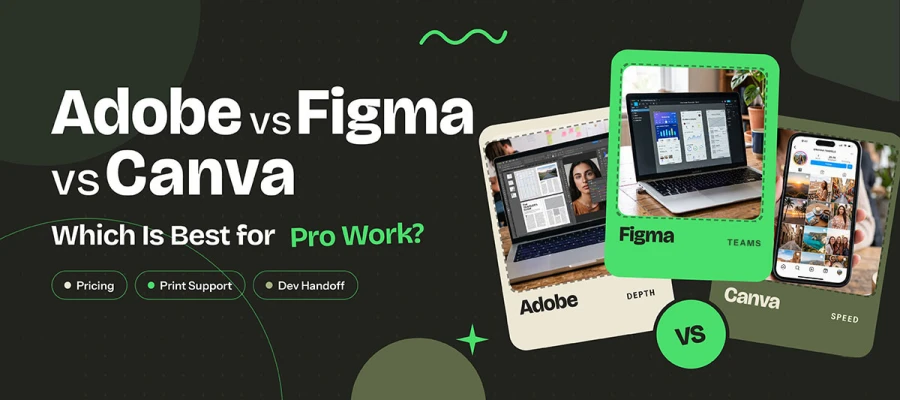
If you're looking to compare Adobe vs Figma vs Canva for professional creative design, here's the quick answer. Pick the tool that matches your work. Adobe Creative Cloud suits print, packaging, photo retouching, and video. Figma fits app, website, and design system projects built with developers. Canva handles quick, on-brand social and marketing content with a gentle learning curve. Many professional teams use two or three of these tools together instead of relying on one.
Every great design career has a moment like this. You open a new project brief, your cursor blinks, and one question stops you cold. Which tool should I trust with this work? For designers, marketers, and business owners across the USA, that question now comes down to Adobe, Figma, and Canva.
Rather than a fight between three equal products, this is really a question about what kind of professional work you do. Too many teams buy the tool with the biggest reputation, only to find out it can't do the one thing they need. That might be a CMYK file ready for print, a developer handoff, or a social campaign of 50 posts due by Friday.
This comparison shows Adobe, Figma, and Canva feature by feature, cost by cost, and role by role, so you can match the right software to the work you actually do.
Stick around, because the article may save your team the most time and money.
So, keep reading!
Adobe vs Figma vs Canva
Adobe, Figma, and Canva sit on opposite ends of the professional design spectrum. One is built for depth, one for teams, and one for speed. No single platform wins across every category, which makes direct comparison essential. This Adobe vs Figma vs Canva breakdown pinpoints exactly where each tool wins, so you can match your next project to the right one.
Let's dive in and explore!
Feature
Adobe Creative Cloud
Figma
Canva
Best for
Print, photo, illustration, video, prepress
UI/UX, prototyping, design systems
Fast branded marketing content at volume
Core apps
Photoshop, Illustrator, InDesign, Premiere Pro, After Effects
Figma Design, FigJam, Dev Mode, Figma Slides
Canva editor, Magic Studio, plus Affinity
Where it runs
Mainly desktop, some web and mobile
Browser-based, and the desktop app is a wrapper
Browser and mobile
Learning curve
Steep
Moderate
Very low
Real-time collaborative editing
Limited
Core strength
Yes
Print / CMYK output
Full prepress control
None (RGB only)
Limited CMYK PDF export
Developer handoff
Weak
Dev Mode, the strongest of the three
Not applicable
Offline use
Yes
Limited
Limited
Free tier
No (trials only)
Yes, capped
Yes, fully usable
Usable without design training
No
Partially
Yes, by design
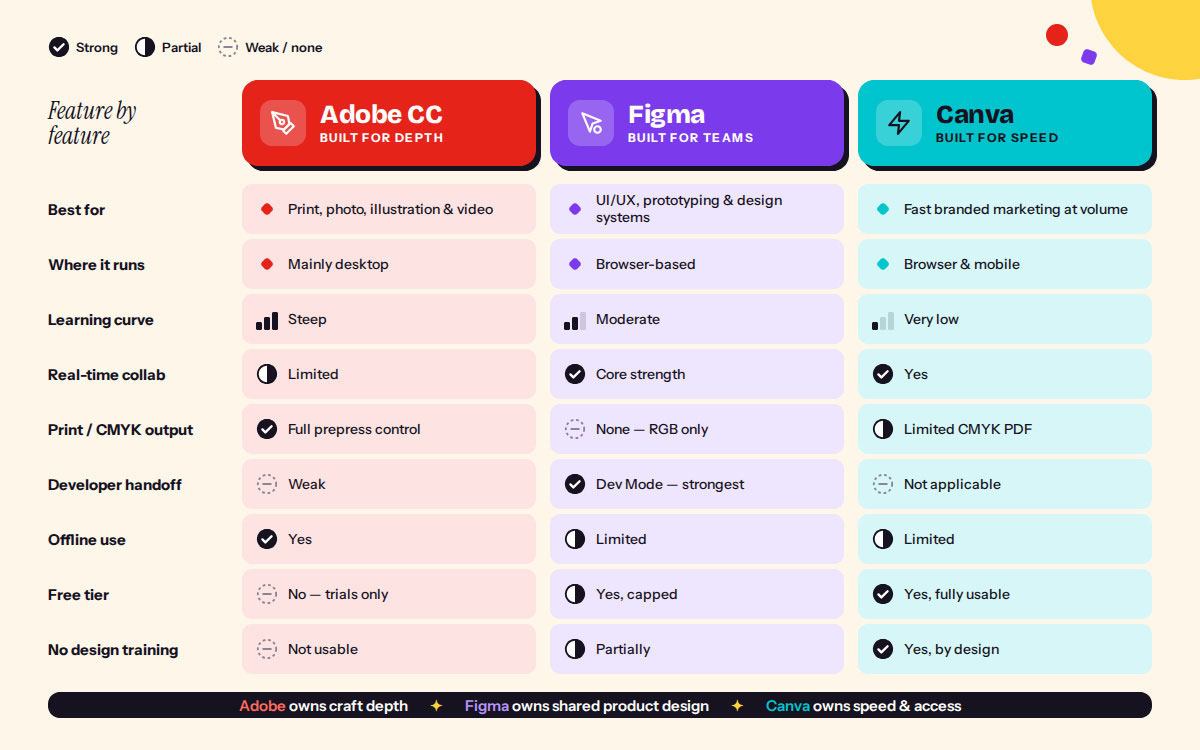
One pattern in the table is clear. These three products barely overlap at the center of what they do best. Adobe owns craft depth and final output. Figma owns shared product design. Canva owns speed and access for everyone. That's why judging Adobe vs Figma vs Canva on feature lists alone is misleading. Compare them on the output you have to ship.
Best for
Adobe Creative Cloud is built for professionals whose work ends up in print, on screen, or in motion at the highest quality. Figma is built for teams designing apps, websites, and digital products together. Canva is built for anyone who needs polished marketing content fast, whether or not they're trained as a designer.
Core apps
Adobe is a suite, and Photoshop, Illustrator, InDesign, Premiere Pro, and After Effects each lead their own category. Figma is one connected workspace, with Figma Design for interfaces, FigJam for whiteboarding, Dev Mode for engineers, and Figma Slides for presentations. Canva combines its drag-and-drop editor with Magic Studio AI tools. Since Canva acquired Affinity, it also offers a professional-grade app for vector, photo, and layout work.
Where it runs
Adobe apps are built for the desktop first. They're heavy, powerful, and installed on your machine. Figma was born in the browser, and its desktop app is essentially a wrapper around that experience. Canva lives in the browser and on mobile, so you can create a social post from a laptop in Chicago or a phone at a trade show in Las Vegas.
Learning curve
Adobe has the steepest climb. Mastering the Pen tool, color management, and InDesign's layout engine takes months, sometimes years. Figma sits in the middle, since auto layout, components, and variables take practice, but its logic is consistent. Canva has almost no learning curve, and most people publish their first design within minutes.
Real-time collaborative editing
Collaboration is where Figma changed the industry. Multiple designers, product managers, and developers can work in the same file at the same moment and see every cursor move. Canva also supports live shared editing and commenting. Adobe has added cloud documents and sharing, but real-time collaborative editing remains limited compared with its two rivals.
Print/CMYK output
This is Adobe's fortress. InDesign and Illustrator give you CMYK, Pantone spot colors, bleed, preflight checks, and the prepress control that commercial printers expect. Figma works only in RGB, so it has no place in a print workflow. Canva can export CMYK PDFs for simple collateral, but it can't match Adobe's precision for packaging or complex print jobs.
Developer handoff
Figma wins by a wide margin. Dev Mode lets engineers inspect spacing, grab code snippets, read design tokens, and track what's ready to build. Adobe's handoff tools have been weak since Adobe XD stepped back. Canva isn't built for handing designs to developers, so it doesn't compete here.
Offline use
If you work on flights, in secure facilities, or with unreliable internet, Adobe is the safest choice because its apps run fully on your computer. Figma and Canva both depend on a connection, and their offline options are limited. The desktop version of Affinity is also a strong offline choice.
Free tier
Canva's free plan is fully usable for real projects, with thousands of templates and core editing tools. Figma's free Starter plan is capped at three design files, which is enough to learn and test. Adobe offers no free Creative Cloud tier, only trials that expire.
Usable without design training
Canva was built from day one for people without design training, and it shows. Figma is partly friendly, since stakeholders can comment, review, and present easily, but building designs takes skill. Adobe is made for trained professionals, and a beginner opening InDesign for the first time often feels lost.
Which tool is best for professional work?
The best tool for professional work depends on your role and the output you ship. Every professional has a story about the wrong tool. Maybe it's the brand designer who built a packaging mockup in a browser app and watched the colors shift at the printer. Or the marketing manager who paid for a full creative suite and only ever resized social posts. Mistakes like these cost time, money, and confidence.
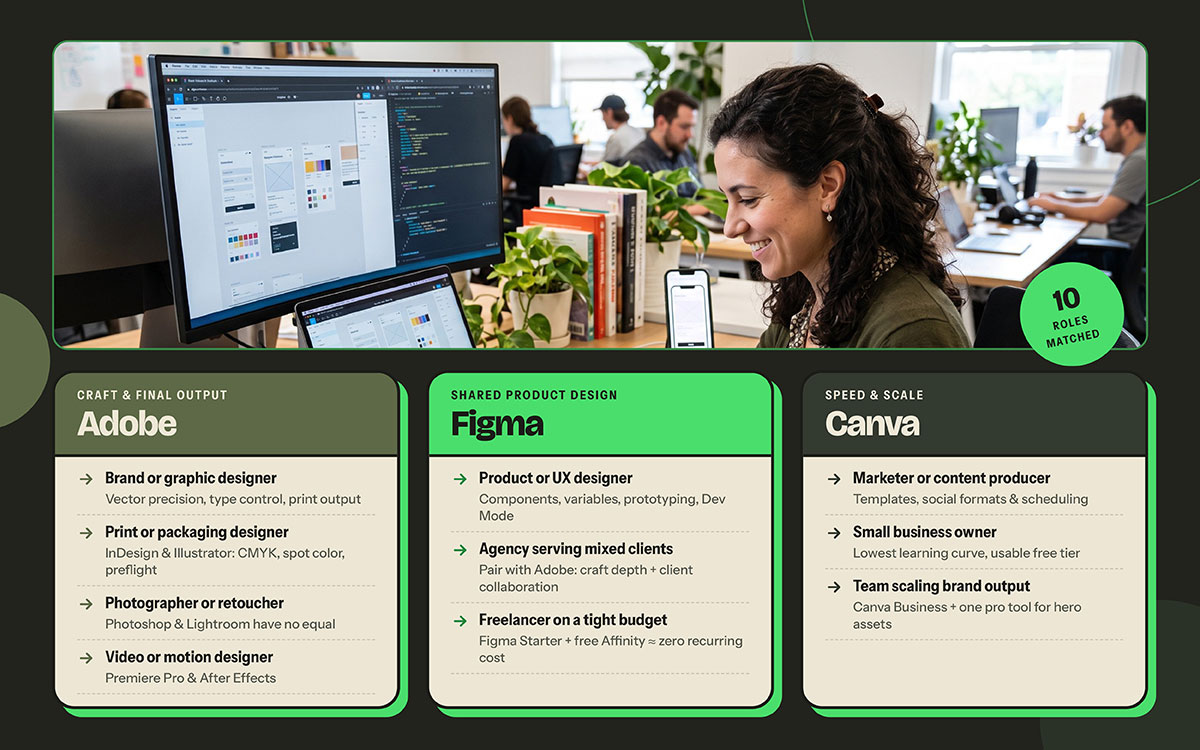
Answering which tool is best for professional work means matching some common roles to their ideal pick, so you can choose based on real output rather than guesswork.
If you are a...
Choose
Why
Product or UX designer
Figma
Components, variables, prototyping, and Dev Mode handoff
Brand or graphic designer
Adobe (or free Affinity)
Vector precision, typography control, and print output
Print or packaging designer
Adobe InDesign/Illustrator
CMYK, spot color, preflight, and imposition
Photographer or retoucher
Adobe
Photoshop and Lightroom have no equal here
Video editor or motion designer
Adobe
Premiere Pro and After Effects, which neither rival can match
Marketer or content producer
Canva
Speed, templates, social formats, and scheduling
Small business owner with no designer
Canva
Lowest learning curve and a usable free tier
Agency serving mixed clients
Adobe + Figma
Craft depth plus collaboration with clients
Internal team scaling brand output
Canva Business + one pro tool
Governance for volume, depth for hero assets
Freelancer on a tight budget
Free Affinity + Figma Starter
Professional output at close to zero recurring cost
Put simply:
Best for UI/UX and product design: Figma, because its components, prototyping, and Dev Mode keep designers and engineers working from one shared source of truth.
Best for print and packaging: Adobe InDesign and Illustrator, because they offer full CMYK, Pantone, and prepress control.
Best for photo editing: Adobe Photoshop and Lightroom, which remain the industry standard for retouching and color grading.
Best for video and motion: Adobe Premiere Pro and After Effects, since neither Figma nor Canva offers the same depth.
Best for social media and marketing content: Canva, thanks to its templates, brand kits, resizing, and scheduling tools.
Best for small businesses: Canva, because anyone on the team can create on-brand content without any training.
Best for freelancers on a budget: Affinity (free with a Canva account) plus Figma's free Starter plan.
Best for agencies: Adobe and Figma together, combining craft depth with smooth client collaboration.
The logic behind every row is the same. Buy for the output you ship most often rather than for the tool with the longest feature list. A marketing team publishing 200 social posts a month doesn't need InDesign's imposition controls, and a packaging designer can't send an RGB Figma file to press. When the tool fits the deliverable, your team works faster, spends less, and produces better work.
How much does each one cost?
Pricing spans free plans on Figma and Canva to roughly $70 a month for Adobe's top tier, but sticker prices rarely tell the whole story. Seat types, AI credits, and cancellation fees can significantly affect the actual bill. Answering how much each one costs means looking past the plan names to what your team actually pays month to month.
Plan level
Adobe (USD/month)
Figma (USD/seat/month)
Canva (USD/seat/month)
Free tier
None, 7-day trials only
Starter plan, free and capped at 3 design files
Free plan, fully usable
Entry paid
Single App from ~$22.99, Photography ~$19.99
Professional Full seat ~$16 annual (~$20 monthly)
Pro from ~$15 to $18
Mid tier
Creative Cloud Standard ~$54.99
Organization Full seat ~$55 (annual only)
Business ~$20 to $25 per seat
Top tier
Creative Cloud Pro ~$69.99
Enterprise Full seat ~$90 (annual only)
Enterprise, custom quote
Cheaper seat types
N/A
Dev seats ~$12 / $25 / $35 by tier, View seats free
N/A
Education discount
Yes, substantial
Free for verified students and educators
Free for verified schools and nonprofits
Costs that don't appear on the pricing page
Adobe: Annual plans billed monthly carry a fee if you cancel early. Stock assets and some Pantone libraries are licensed separately, and extra cloud storage adds up.
Figma: Seat type matters more than headcount. Giving Full seats to people who only comment is the most common way to overspend, and AI credits are charged by usage on top of the seat price.
Canva: Adding one teammate to a Pro plan moves the account to per-seat Business billing. Some premium elements cost extra even on paid plans, and AI credits are capped.
All three: Annual contracts renew automatically, so mark the cancellation window on your calendar.
The cost lever most articles miss
Here's the twist in the story. Canva acquired Affinity in March 2024, and in October 2025 it relaunched Affinity as one unified app for vector design, photo editing, and page layout, free with a Canva account. Some AI features still require a paid Canva plan. For a solo designer whose work is print and vector rather than collaborative UI, this changes the Adobe cost calculation.
Paying around $70 a month for Creative Cloud Pro is still worth it for video, advanced retouching, or agency work. But for logos, brochures, and print layouts, a free professional tool is now a serious option. If brochures are your bread and butter, see our brochure design tips for what a file needs before it goes to print.
How to choose Adobe, Figma or Canva
Adobe, Figma and Canva each fit a different kind of work, so the right pick depends on what you produce, who's producing it and where your files need to live years from now. This section breaks that decision into seven questions, so you know exactly how to choose Adobe, Figma or Canva for your team's actual workflow.
What do you ship most often? Printed pieces point to Adobe or Affinity. Screens and interfaces point to Figma. Social and marketing content at volume points to Canva.
Does anything need CMYK or spot color? If yes, Figma is out for that workflow, and Canva only covers simple collateral such as flyers and business cards.
Do developers need to build from your files? If yes, Figma's Dev Mode is the deciding factor. No other tool here makes handoff as clean.
How many people without design training will create assets? The more there are, the stronger the case for Canva with brand kits and locked templates.
What will your seats realistically cost over three years? Model it at your projected headcount rather than today's. Figma's Organization tier and Canva's per-seat Business billing both grow faster than most teams expect.
How important is offline work with local files? Field work, secure environments, and unreliable connections favor Adobe or Affinity.
What is your exit plan? Ask what happens to your files if you stop paying. Can you export them in an open, editable format? Settle this before you standardize rather than after.
Once you've chosen, a clear workflow matters just as much as the tool. Our walkthrough of the graphic design process shows how to structure projects from brief to final file.
Adobe, Figma & Canva FAQs
Pricing, print support, and the abandoned Adobe Figma acquisition top the list of questions people ask when comparing these three tools. This section answers each question directly, so designers, marketers, and business owners get quick clarity on the Adobe vs Figma vs Canva FAQ without digging through a full comparison guide. If the following doesn’t cover your concern, you can always contact us with any queries.
For UI design, design systems, and developer handoff, yes. When it comes to print, photography, illustration, and video, no. Figma works only in RGB and lacks advanced raster editing, so it can't replace Photoshop, Illustrator, or InDesign. Most professional teams use both rather than choosing one.
Often yes for marketing content, social media assets, and presentations. No for prepress, packaging, retouching, and illustration, because Canva's precision and color control are limited. However, Canva now offers the professional Affinity app free with an account, which closes much of that gap outside the Canva editor.
Canva and Figma both offer usable free tiers, while Adobe does not. Among paid plans, Figma's entry seat and Canva Pro cost roughly the same, while Adobe's all-apps plans cost several times more. The cheapest professional setup is the free Affinity app plus Figma's free Starter plan.
No. Figma works only in RGB and has no CMYK color space, spot color support, or prepress controls. Files meant for commercial printing must be converted in another app, which risks color shifts. For print work, use InDesign, Illustrator, or the free Affinity app instead.
No. Adobe announced a deal to buy Figma in September 2022 for about $20 billion, but the companies terminated the agreement in December 2023 after regulators in the UK and the EU closely examined it. Figma received a $1 billion termination fee from Adobe and later went public on the NYSE under the ticker FIG.
Adobe XD is no longer sold as a standalone Creative Cloud plan and gets very little development. Teams that need a dedicated interface design tool now generally use Figma or alternatives such as Sketch, Penpot, or Framer. Check Adobe's website for current availability before relying on XD.
It depends on the deliverable. For fast branded marketing content, presentations, and social media, Canva is efficient and widely used by professionals. With identity design, packaging, editorial layouts, or retouching, it lacks the precision and output control those fields need. Many designers use Canva alongside a pro tool.
Canva, in most cases. It has the lowest learning curve, a usable free plan, brand kits that keep your content consistent, and templates for every common format. Add a professional tool only when you need packaging that is ready for print, custom illustration, or a website interface designed from scratch.
Endnote
Finally, we've reached the end of our comparison!
After looking at the Adobe vs Figma vs Canva comparison, one truth is clear. These three are less rivals than tools built for different jobs, and they overlap only at the edges.
Adobe is the craftsman's workshop, unmatched for print, photography, illustration, and video. Figma is the shared studio where product teams design interfaces and systems together. Canva is the fast lane, where marketers and business owners turn ideas into polished content in minutes. The right choice is the one that fits the work you do every day rather than the most famous name.
So, before you commit your team's budget, run one real project through each tool you're considering. Use the free plans and trials, time the task, test the export, and see which one feels like home. That simple test will tell you more than any feature list.
We hope this Adobe, Figma, and Canva comparison helps you choose based on your requirements. And if you'd rather leave the design work to experts, whether that's a Canva design service for on-brand templates or a Figma design service for app and website screens, get in touch with Graphic Design Eye LLC and let our team handle it while you run the business.
Good luck choosing the design tool that helps your best work shine!
Graphic Design Eye LLC is a full-service creative agency built for brands that demand more than design — they demand vision. From strategic branding to complete visual identity, we partner with startups, agencies, and growing businesses as a dedicated creative force. With flexible subscription and project-based models. Let's start with us today!