TL;DR:
Looking for a Canva vs Adobe Illustrator comparison for your graphic design needs? Explore the article, I’ll compare which design tool suits you best. Get quick tips, clear side-by-side comparisons, and pro insights to help you choose the right tool with confidence.
 Brochure Design
 Jan 28,2026
 17 minutes
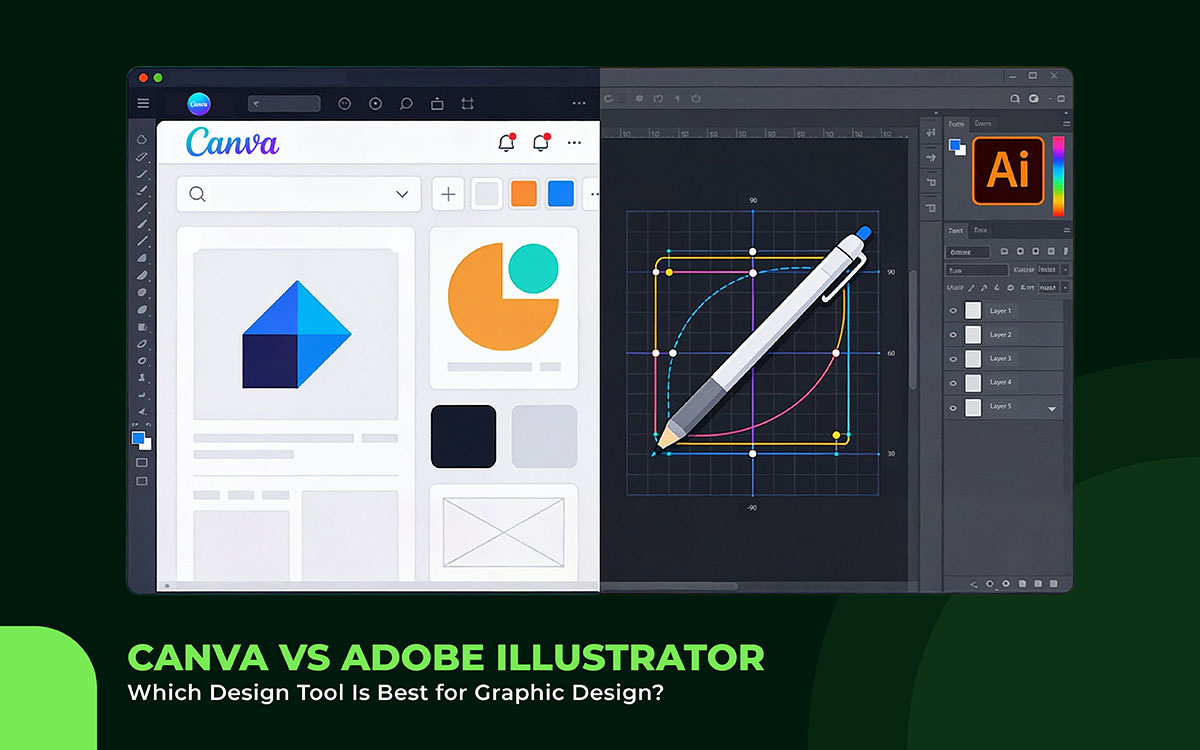


The Canva and Adobe debate usually starts with a shortcut. People say, “Canva is simple, Illustrator is powerful.” At first, that makes sense. But when design becomes serious work, that idea doesn’t hold up.
If you own a business, are learning design, or make visuals often, this choice matters a lot. Canva vs Illustrator is not just about what you like. It affects how your designs grow, stay consistent, and look outside a screen. This is even more important when you think about branding, printing, or other production work.
Canva is made to be fast and easy. You open it, pick a layout, change the content, and you’re done. That speed is exactly why people love it. Illustrator is different. It works with vectors, structure, and precise control. It expects you to know what you’re making before you start decorating it.
So, the real question isn’t which tool is better. The real question is: which tool actually helps to reach design goals?
So, let’s go step by step and make this clear.
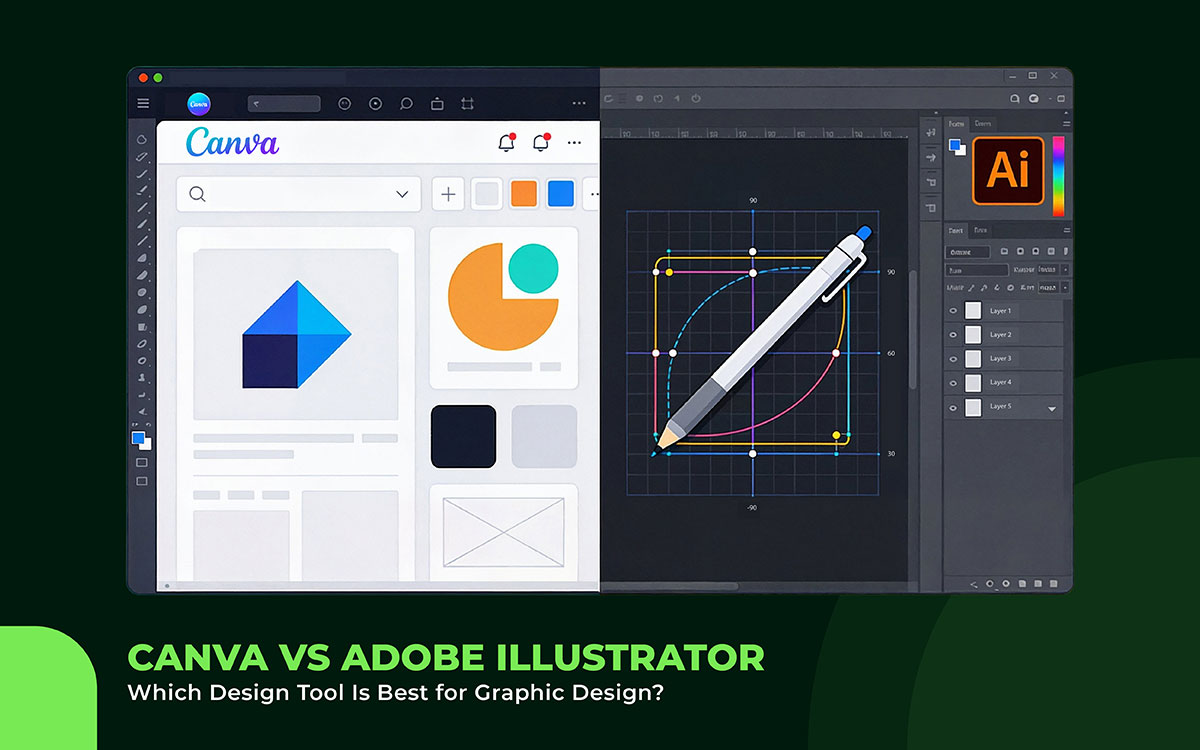
When we compare Canva vs Adobe Illustrator, it’s important to know one thing first. These graphic design tools don’t do the same job. They are made for different kinds of design work.
Canva is simpler and faster. Illustrator is more advanced. Each one fits different design needs and skill levels.
Below, we’ll compare them in real design situations: daily tasks, creative freedom, print-ready files, and long-term branding. These are the parts of design that matter in real life, not just in theory.
By the end, you’ll understand where Canva works best, when Illustrator is needed, and which tool matches the kind of work you want to do.
Let’s go step by step and make it easy to see the differences.
Canva works with templates. You use a system that someone else made. This makes it easy to try new things. But it also quietly limits how original your design can be. Push a design too far, and it starts to look blurry or messy. Try to tweak small details, and you might hit a limit.
Illustrator works differently. It’s fully vector-based. That means everything is made with math. A line stays perfect no matter how big you make it. This is important when a design needs to be very flexible.
For example, a small logo on a shirt or a giant print on the front. It won’t fall apart. This kind of precision isn’t optional if you want professional T-shirt printing. It’s just the standard.
In Canva, text is mostly decoration. You pick a font, make it bigger or smaller, maybe change the spacing a little, and that’s it. It works, but it’s basic.
In Illustrator, text is more like a building block. Letters can turn into shapes. You can bend them, break them, or make them follow a path. Text can even mix with pictures and drawings.
This matters a lot for design. Often, the text is the main part of the design. Logos, slogans, or custom lettering need more control than a simple template can give.
Canva is made for screens. It looks great on phones, tablets, and social media. You can save your work to print, but the colors might not always turn out exactly right. You’re trusting the system to guess how they should look.
Illustrator is made for printing. It works with CMYK colors, special inks, and Pantone swatches. It even handles screen printing. These aren’t just fancy tools for experts. These are the skills you need to ensure things print correctly.
Different materials, like fabric or paper, show colors differently. Illustrator helps you see and control how your colors will look in print before you print.
Canva’s layering system works most of the time. If you have just a few things on your design, it’s easy to handle. But once your design gets complicated, it can become messy. Managing all the pieces gets hard fast.
Illustrator, on the other hand, is made for tricky designs. You can put layers inside layers, use masks, and group things together. You can even have multiple artboards for different shirt sizes, colors, or placements.
If you need a complete set of designs that work together, Illustrator makes it easier to keep everything organized and flexible.
Canva wants to be everything you need in one place. It’s easy to use and handy. But it can feel a bit stuck. You can’t always do everything you might want.
Illustrator is different. It works with other programs, such as Photoshop. You can add textures, create mockups, or age or wear designs. You can get files ready the way printers need them. You can export exactly what the project asks for, not just what the software allows.
This isn’t about showing off or making things look fancy. It’s about making the process smooth. It helps your ideas move from your head onto the page without extra problems.
Canva helps you make things that look “right.” It stops you from making big mistakes. But sometimes, it also stops you from doing something amazing.
Illustrator doesn’t hold your hand. It assumes you know about things like layout, color, and size, or that you are willing to learn. In return, it gives you total freedom. But with freedom comes responsibility. Your designs either work because you planned them, or they fail.
For small, casual projects, Canva is great. It makes things easy. But for serious work, like social media posts, T-shirt design, Illustrator is more appropriate. It won’t make it fast. But it will let you do more.
That’s the difference. Canva helps you share ideas. Illustrator helps you make them truly yours.
Want something different? Explore other Canva alternatives.
When you look at the price of Canva and Adobe Illustrator, it already tells a story. It’s not just about which one is cheaper. It’s also about what the price is trying to say.
Canva is cheap because it wants to make things easy for you. It’s low-risk. Illustrator costs more because it expects you to take responsibility. That matters a lot if you’re designing T-shirts.
You’re not just paying for a program. You’re paying for control. And you’re also paying for how much room there is to make mistakes.
Let’s look at the prices side by side. Then we can see what they really mean when you use them.
Canva’s Free plan costs nothing. Zero dollars. That’s why so many people love it. Anyone can open it and start making designs right away.
For T-shirts, this means you can create text designs, simple images, or quick mockups without worrying about cost. When it’s free, you don’t feel scared of messing up. You can try new things and play around.
Illustrator is different. It doesn’t have a free option. You can try it for a short time, but then it costs $22.99 a month, or about $275 a year.
That price makes people think twice. Illustrator isn’t asking, “Do you want to try making designs?” It’s asking, “Are you serious about making something that will actually be printed?”
The difference is subtle:
Canva Pro costs about $60 a year. That’s cheaper than what many people spend on coffee in a month.
With Canva Pro, you get lots of helpful tools. There are premium templates, stock photos, and graphics. You can remove backgrounds from images, resize designs easily, and even use AI features.
This makes it great for designs that change quickly, like social media graphics and T-shirts. You can create many designs quickly with little effort.
Illustrator is much more expensive. It costs $22.99 every month. Over a year, that adds up to four or five times the cost of Canva Pro.
If you get the full Creative Cloud, it can cost between $500 and $800 each year.
This isn’t accidental:
Canva Pro costs about $60 a year. But it’s not about teaching you everything. It’s about helping you get started fast.
Illustrator, at a monthly professional price, sells something else entirely:
Here, the price shows the real cost of printing. Even one small mistake in a big order can cost more than a year's worth of Illustrator use. Experts don’t buy the design software just for fun. They buy it because it helps avoid expensive mistakes.
Adobe makes it easier for students to try their tools. For the first six months, Illustrator costs only $12.49 a month. That’s much cheaper than the regular price.
But this deal doesn’t last forever. After six months, the price returns to normal professional rates.
Canva works differently. It doesn’t have special student prices. Its normal price is already low enough for students.
This means Canva keeps things affordable all the time. Adobe only makes it easier for a short time, then asks more from you.
Canva Business costs less than $100 per person per year. It is designed for teams that need to create content quickly. You can even use it to design social media posts, T-shirts and other merchandise. You don’t need to worry about complicated production stuff.
Illustrator for Teams is much more expensive. It costs about $455 per year per license. If a team uses the full Creative Cloud, the cost can exceed $1,000 per designer per year.
Adobe prices this way because it assumes something Canva doesn’t:
If you want to design T-shirts fast and with little risk, Canva is the easiest option. It costs between $0 and $60 per year. You can learn it quickly. It works well for small jobs and simple ideas.
If you want to create high-quality designs that look sharp in print, Illustrator is the better choice. It costs much more, starting at around $275 per year and rising. But it gives you full control. It is built for serious design work that needs accuracy and clean results.
Canva’s price is mainly about access. You pay to use ready-made templates and easy tools. These help you design faster without much effort.
Illustrator’s price is about trust and power. You pay for strong tools that work smoothly every time. These tools let you design exactly the way you imagine.
At the heart of the Canva vs. Adobe Illustrator debate, the real difference is not how easy or hard they are to use. It goes deeper than that. This is not just a simple fight between a beginner tool and a professional one. Many people say that, but it misses the point.
The true difference is about control. It is about who has the final say over the design. It matters most when a design leaves the screen and becomes something real, like a printed T-shirt or a poster you can hold in your hands.
The table below shows the differences clearly:
| Aspect | Canva | Illustrator |
|---|---|---|
| Vector integrity | In Canva, vectors live inside containers. They look fine at first, but they aren’t truly editable. You can’t refine curves at a deep level, and scaling works until it suddenly doesn’t. | Illustrator works at the mathematical level. Every curve is intentional. Every shape stays clean, no matter how large or small it gets. |
| Stroke behavior | Canva treats strokes as visual styling. They follow template rules and often scale inconsistently. | Illustrator treats strokes as structural decisions. You control their thickness, expansion, and outlines. In print, this determines whether a line looks sharp or disappears entirely. |
| Typography as structure | In Canva, text is handled as blocks. Place it. Resize it. Move on. | Illustrator treats typography as form. Letter spacing, outlines, paths. Text becomes geometry, not decoration. This matters when type needs to integrate with graphics and survive repeated printing. |
| Color separation readiness | Canva doesn’t really think about separation. Colors are flattened and deferred to the printer or platform. | Illustrator assumes separation from the beginning. Spot colors, ink counts, and overlays are intentional. Problems are solved before they become expensive. |
| Tolerance for production stress | Canva works as long as nothing pushes back. | Illustrator assumes everything will. Fabric bleed. Ink spread. Scaling inconsistencies. Illustrator doesn’t protect you from these constraints. It lets you design with them in mind. |
| Layer discipline | In Canva, layers help you stay organized. | In Illustrator, layers control logic. What prints. What overlaps. What stays isolated. As designs grow more complex, this becomes nonoptional. |
| Error visibility | Canva hides mistakes until late in the process. | Illustrator shows them early. That difference alone can save time, money, and frustration. |
| Creative ceiling | Canva’s ceiling arrives quietly. One day, the tool simply won’t let you go further. | Illustrator’s ceiling is not technical. It’s personal. Skill and intent become the only limits. |
At this stage, the real question is no longer who should use Canva. The question becomes who can afford the limits it hides. Some costs are not clear at first. They show up later, when the work goes to print.
Canva works best for designers who do not handle printing themselves. It suits people who use print-on-demand services to fix issues later. It is great for fast designs that follow trends and carry low risk. Canva cares more about how a design looks than how it prints.
Illustrator is better for designers who prepare files by hand. These designers think about ink use, trapping, and sharp edges early. They build reusable designs and strong brand systems. They also know that print mistakes are real, not just ideas on a screen.
And once you reach a certain level, that handoff stops being a preference. It becomes the price of doing serious work.
This choice is not really about which tool is better. It is about where your job as a designer ends. Some designers stop when the design looks good on a screen. Others stay responsible even after the file is sent for printing.
If your work ends on the screen, Canva is a good fit. It helps you work quickly and stay up to date with trends. You can publish designs without worrying much about what happens next. When another platform or printer handles the risk, Canva’s limits stay out of sight. For many creators, this is a planned choice. Speed matters more than control.
But things change if your work goes beyond the screen. Once you are responsible for the actual file, the tool matters more. Printing, resizing, and repeating a design on clothes all need accuracy. At that point, Adobe Illustrator becomes important, not optional.
Clean edges, correct sizing, and steady colors affect the final result. Ink behavior and brand consistency are not just about looks. They are real production issues. Illustrator does not remove these problems. Instead, it gives you control to handle them properly.
So choose Canva if your workflow depends on speed, ease, and low risk. Choose Illustrator if your value comes from precision, reliable production, and long-term systems. The real question is not what you want to design. It is the amount of control you are willing to give up after the design is finished.
Not sure how to handle Illustrator? Check out this Adobe Illustrator T-shirt design guide.
Designing something on a screen is one kind of job. Designing it for print is different. Designing for real production is even harder. That is where ink, fabric, and size all come together. Many people get confused because they forget that the design workflow in Canva and Illustrator is different.
With this in mind, let’s look at some common questions about this topic.
Yes, but only for simple prints. Canva works when someone else handles print errors. If precision matters, Illustrator is the safer choice.
No. It just doesn’t hide how DIY graphic design works. Illustrator teaches the fundamentals of vector graphics, such as paths and strokes. With patience, beginners can learn it step by step.
Yes, but they are limited vectors. Files often flatten or break during printing. Illustrator exports true, production-ready vectors.
Illustrator, without question. It gives full control over spacing, curves, and scaling. Canva is fine for quick type, but not for serious design.
Export your Canva file as PDF or SVG. Open it in Illustrator and rebuild the design properly. Use Canva for ideas, Illustrator for final output.
By now, the Canva vs. Adobe Illustrator debate should make more sense. Not because one tool wins, but because you can finally see what each one really does.
Canva gets you moving fast. Illustrator gives you control that lasts.
Neither tool is wrong. They just solve different problems. The confusion starts when we expect one to handle everything.
If you're still not sure which to pick, that's normal. Most designers actually use both. Canva helps you sketch out ideas quickly. Illustrator is where those ideas become bulletproof files that work for professional graphic printing.
Here's what experienced designers suggest: you can start in Canva to play with layouts and concepts. Then move to Illustrator when accuracy matters.
Sometimes the real problem isn't choosing between tools. It's not having the time, the skills, or the team to turn your vision into something print-ready and professional.
That's exactly where we come in.
At Graphic Design Eye, we've been helping businesses and creators bring their design ideas to life since 2016. We handle everything from custom logos and branding to full-scale T-shirt designs that actually work.
Our team knows both Canva and Illustrator inside and out. More importantly, we know how to prepare files that printers love, and that look sharp on every shirt.
Whether you need a single design or bulk orders for an entire collection, we've got you covered. Fast turnarounds. Unlimited revisions. 24/7 support. And we promise you'll save at least 30% compared to other graphic design services.
So if you've just finished this article and you're thinking, "Okay, I get the difference now... but I still need help making this happen," let's talk.
Get started with Graphic Design Eye today!